How to change the account owner
-
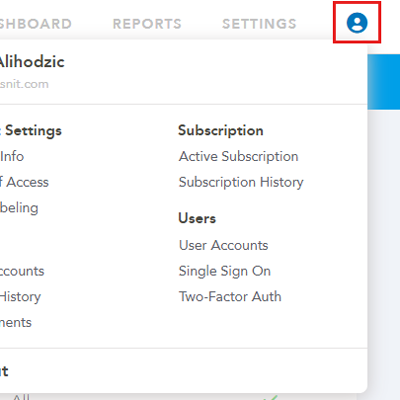
Log in to your Lobbytrack portal, click on the profile icon (top right corner).
-
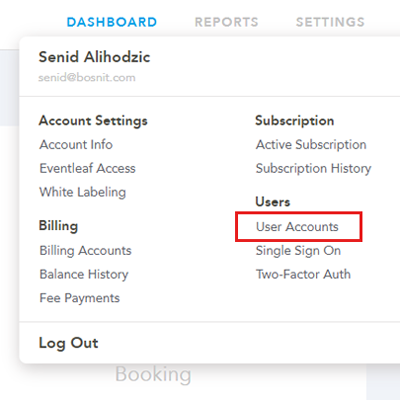
From the drop down menu, select “User accounts”
-
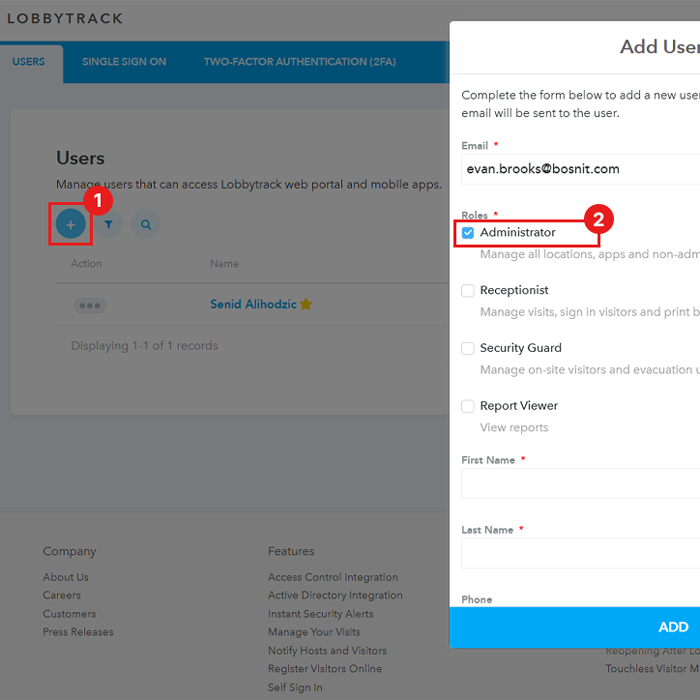
Click on the “+” icon and add the potential account owner as an administrator.
-
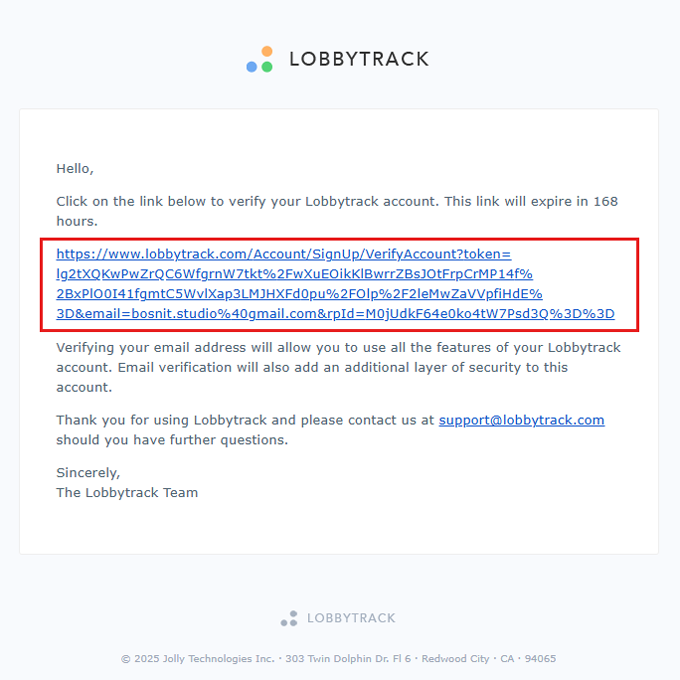
The administrator will receive an email, they will have to activate their user account through the email they receive.
-
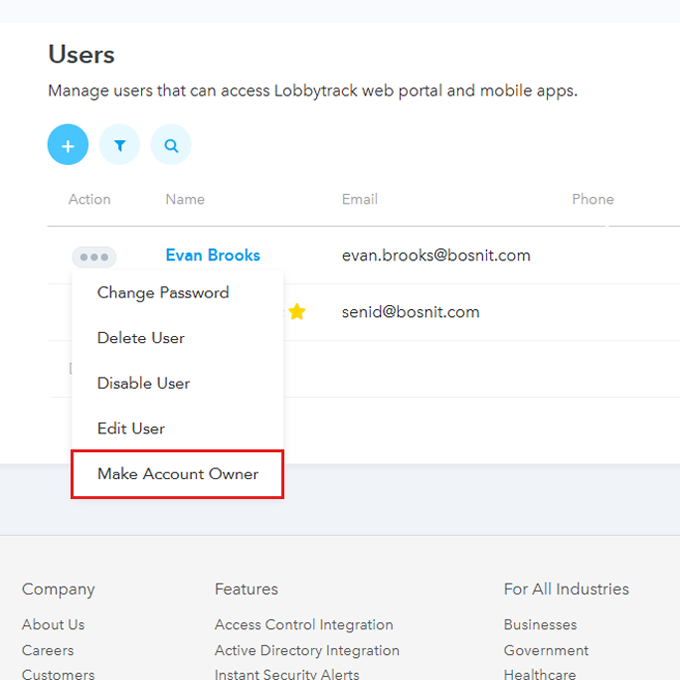
Once the new account administrator has been activated, click on the 3 dots next to their name under the Action column, then select “Make account owner”.
-
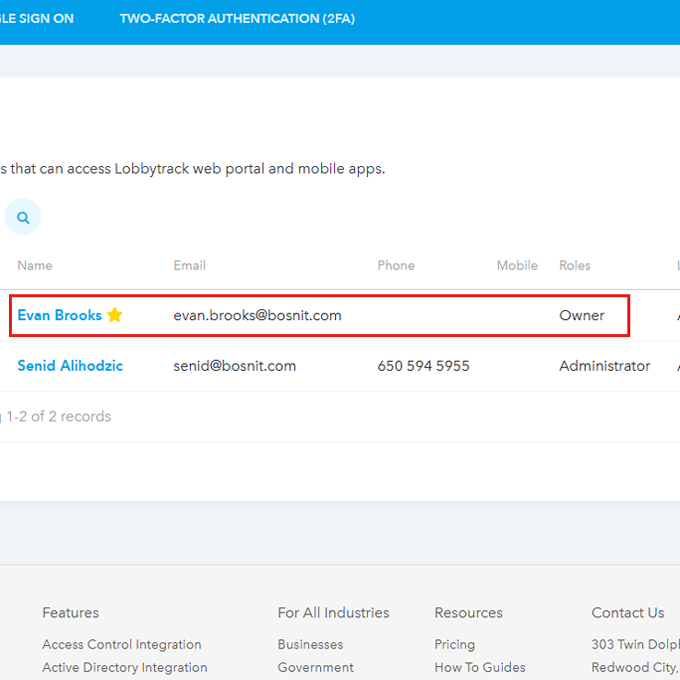
Once the new account owner is selected the previous account owner becomes an administrator. If you like, then you can also delete the previous account owner.
Frequently Asked Questions (FAQ)
Use Cases: When to Transfer Account Ownership
Account ownership isn't something you change every week, but when you need to, it's usually for a vital reason. Here are the most common scenarios where you'll be using these steps:
- The Big Promotion or Team Restructure: Your primary administrator has moved up the ladder or into a new department, and someone else is now responsible for the core functions of your visitor management system.
- Delegating Financial Oversight: You need the billing and subscription notifications to go directly to your Finance or Operations Manager instead of the IT or Security team.
- Handing Off to a Service Provider: Your organization is bringing on a specialized IT management team or consultant, and they require full ownership privileges for setup and configuration.
- The Employee Exit (Offboarding): A key employee who was the original account creator is leaving the company. Changing the owner is a critical security step to ensure the account remains with an active team member.