Step-by-Step Instructions for Sending Emergency Messages to Visitors and Staff
For Administrators (Using the Lobbytrack Dashboard)
This workflow is perfect when you're at your computer and need to configure a multi-channel, multi-location alert.
-
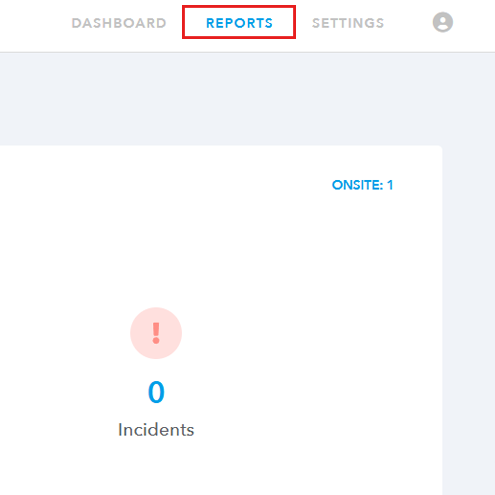
Access the Reports Section: Log into your Lobbytrack dashboard at Lobbytrack.com and head over to the “Reports” section.
-
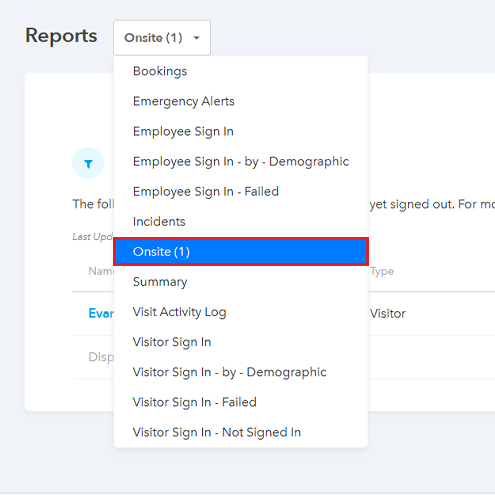
Go to Onsite Reports: Locate the dropdown box right next to the main “Reports” title, and select Onsite from the menu.
-
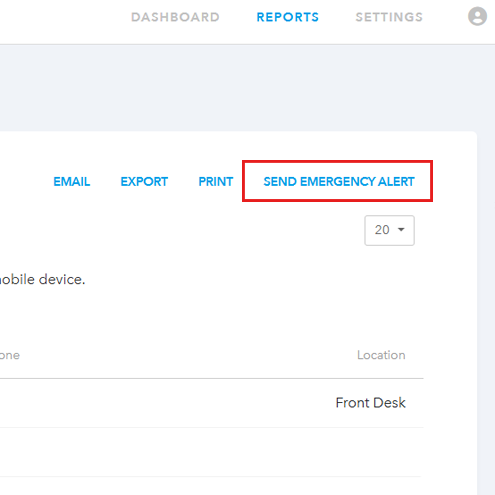
Initiate the Alert: On the Onsite Reports page, you will see a button labeled Send emergency alert. Click it to begin.
-
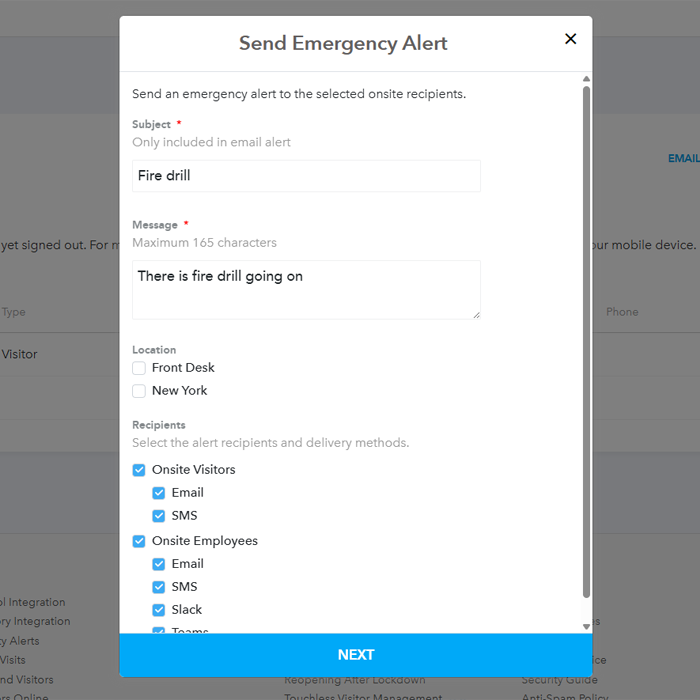
Compose and Configure: Type your emergency alert, choose the location (in case you have multiple locations added to Lobbytrack), choose the channels you want to notify the visitors and employees from and click “Next”
-
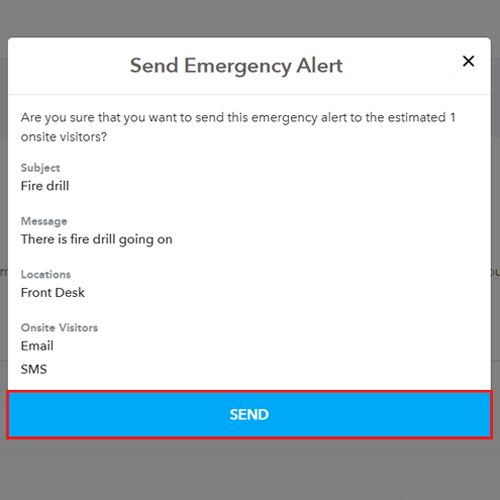
Review and Send: Take a quick moment to review the alert summary to ensure the message and settings are accurate. If all looks good, click Send
-
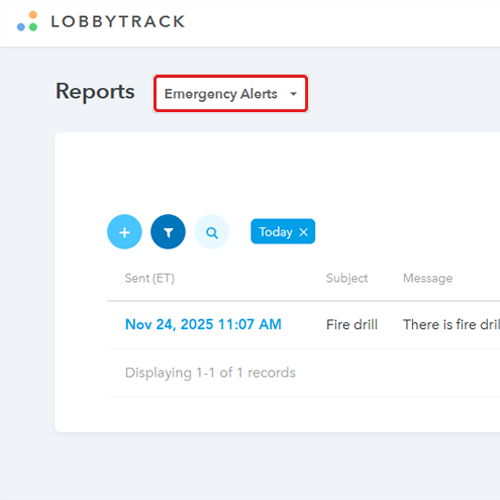
Check Past Alerts (Optional): To review any alerts sent in the past, go back to the Reports dropdown menu and select the Emergency alerts tab.
For Security Guards (Using the Lobbytrack Guard App)
When you're mobile and minutes count, the Guard App provides the quickest path to sending an alert.
-
Open the App: Launch the Lobbytrack Guard app on your device.
-
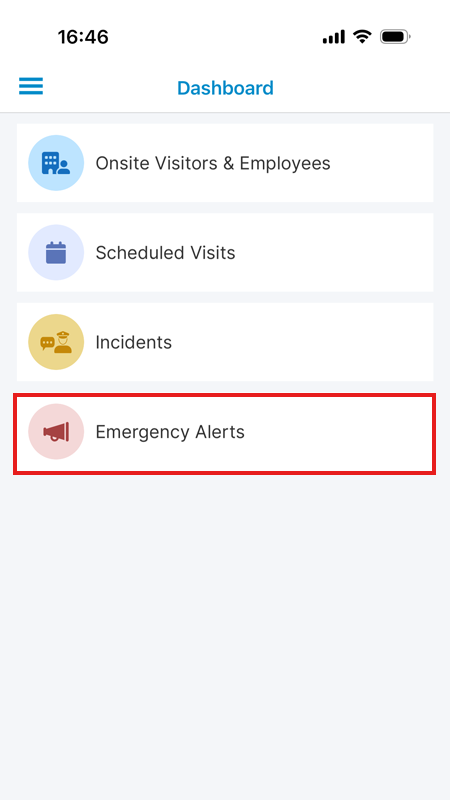
Access Emergency Alerts: Navigate directly to the Emergency alerts section.
-
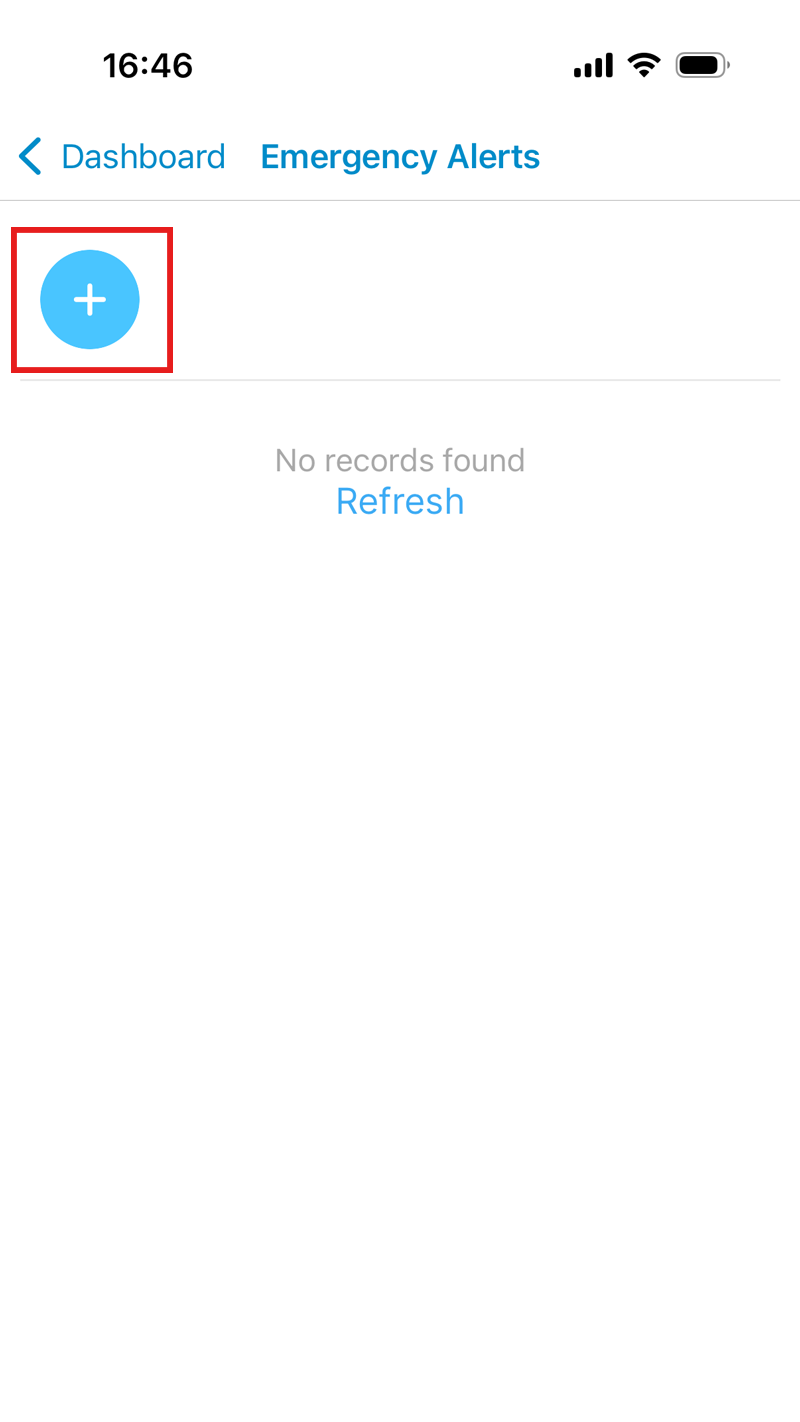
Start a New Alert: This screen lets you view past alerts. To dispatch a new message, tap the + icon located on the left side of the screen.
-
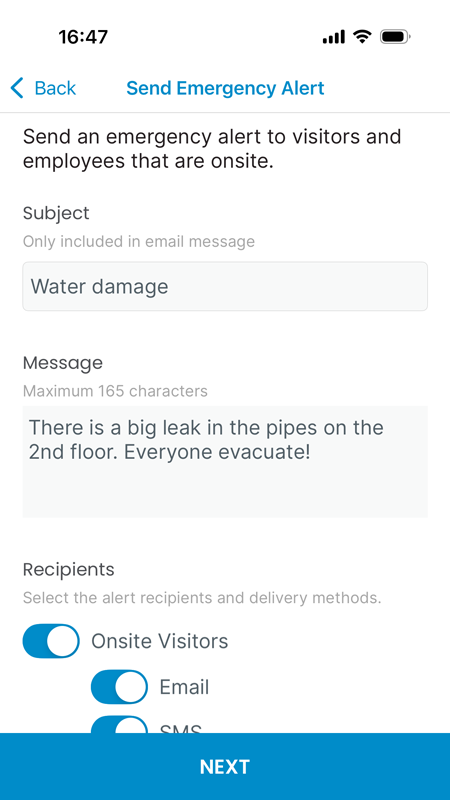
Compose Alert: Type out the full text of your alert message, and then click Next.
-
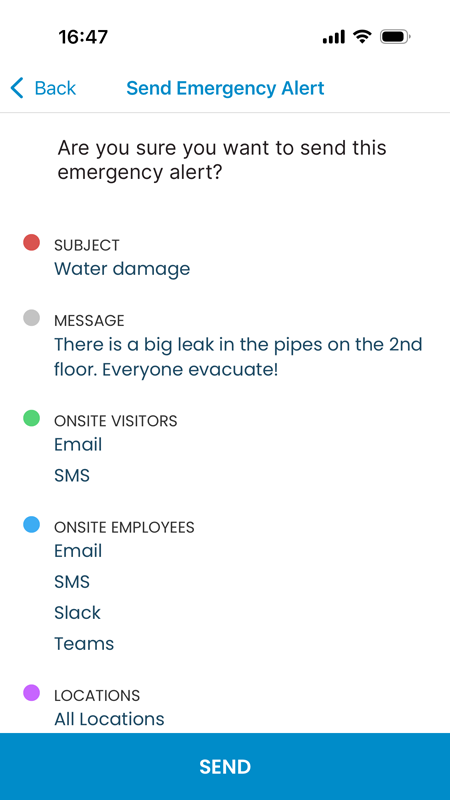
Confirm and Send: Review the final details to make sure the message is correct, and then tap Send to broadcast the alert.
Frequently Asked Questions (FAQ)
Real-Life Use-Case Examples
So, when exactly do you hit that big red button? The emergency alert feature covers a range of scenarios from serious threats to simple, unforeseen closures.
-
Immediate Evacuation During a Fire Alarm
- The Scenario: A fire alarm is pulled in Building B. You need people out, and you need them to go to a specific muster point right now.
- The Action: An administrator accesses the dashboard, selects only "Building B" as the location, and sends an alert via SMS and email: “Immediate evacuation required. Proceed calmly to Muster Point 4 now.” This ensures that everyone, including guests, receives the exact instruction instantly, overriding any confusion from the general alarm.
-
Active Threat / Shelter-in-Place Order
- The Scenario: A security guard receives a verified report of an external security threat near the facility, requiring a building lockdown.
- The Action: The guard, who is already mobile, uses the Lobbytrack Guard App to quickly initiate an alert. The message is simple and actionable: “Security Alert: Shelter-in-Place immediately. Lock all doors and move away from windows. Stand by for further instructions.” The guard app's mobility is key here no time is wasted getting back to a desktop.
-
Unforeseen Facility Closure Due to Severe Weather
- The Scenario: A sudden, heavy storm hits, and management decides to close the site two hours early for employee and visitor safety.
- The Action: An administrator broadcasts a mass notification via all channels: “Facility closure effective immediately due to severe weather. All staff and visitors are advised to safely depart the premises now.” This instantly stops any more visitors from checking in and ensures everyone currently on site is aware of the mandatory early departure order.