How to report an incident
-
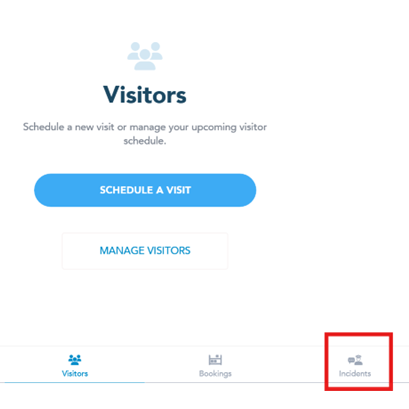
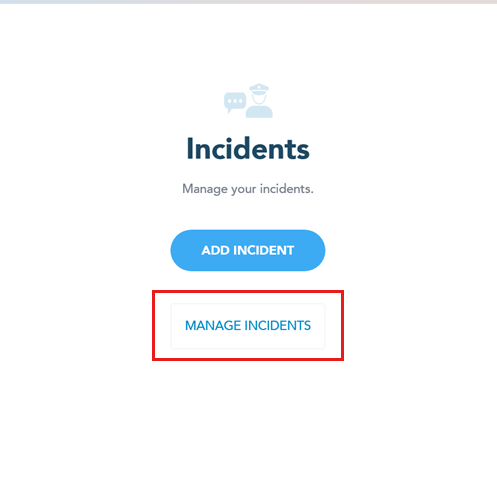
Open your Lobbytrack Employee app. On the main screen, look for and tap the Incidents section.
-
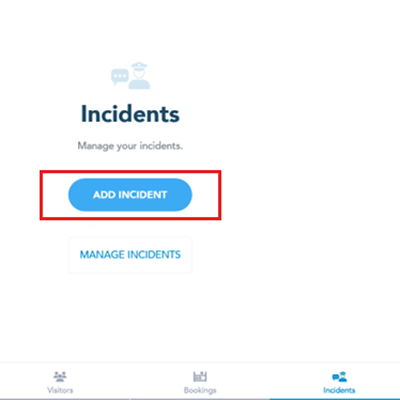
Once you are in the Incidents view, tap the Add incident button to open the reporting form.
-
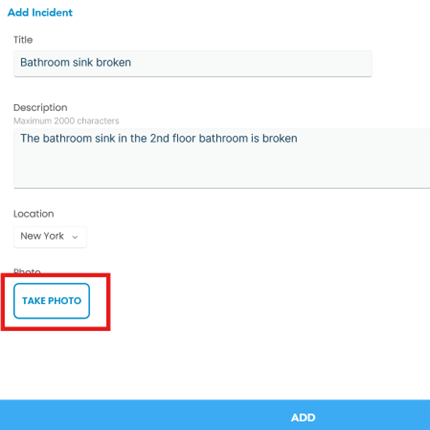
Type a clear description of the incident. Be sure to include important details like the location, time, and nature of the event. To provide helpful context, you can also upload a relevant photo or image of the incident directly from your phone.
-
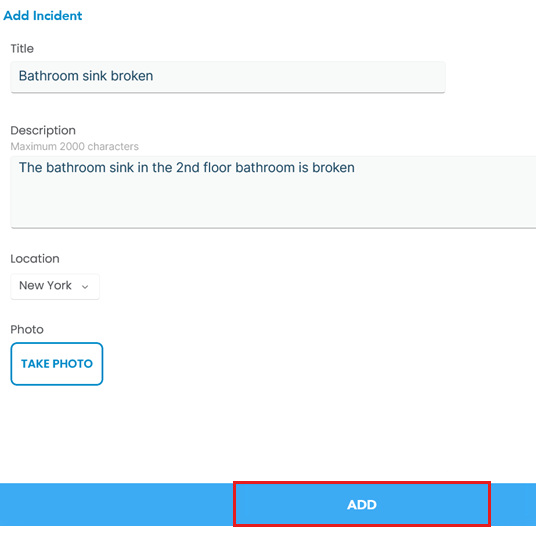
Click on Add.
-
You will then be able to see the incident under Manage incidents
Frequently Asked Questions (FAQs)
Use Case Examples: Why Reporting Matters
Not sure when to use the incident feature? Here are a few examples of how quickly reporting an issue helps keep everyone safe and operations running smoothly:
- Maintenance & Safety Hazard: You notice a section of wet floor near a water fountain where there is no warning sign. Immediately reporting this allows the maintenance team to place a hazard cone and dry the area, preventing a potential slip-and-fall accident.
- Physical Security Concern: You see an exterior door propped open in a restricted area, or a piece of security equipment (like a camera) appears to be damaged. Submitting an incident with a photo instantly alerts the security team to investigate and secure the area before unauthorized access occurs.
- Equipment Damage: A printer in the office kitchen is smoking, or a piece of shared machinery is clearly malfunctioning. Reporting the incident stops others from using the dangerous equipment and fast-tracks the repair process.