The Step-by-Step Guide to Customizing Visitor Screening
This process requires editing the settings for each visitor type you have established in your system.
-
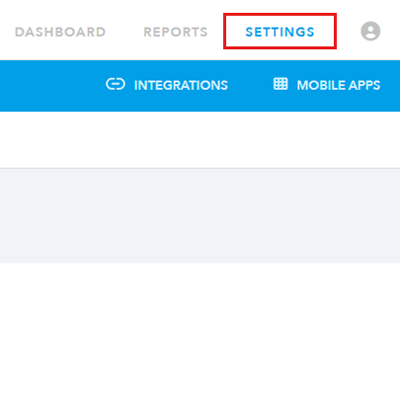
Go to Settings in your Lobbytrack portal.
-
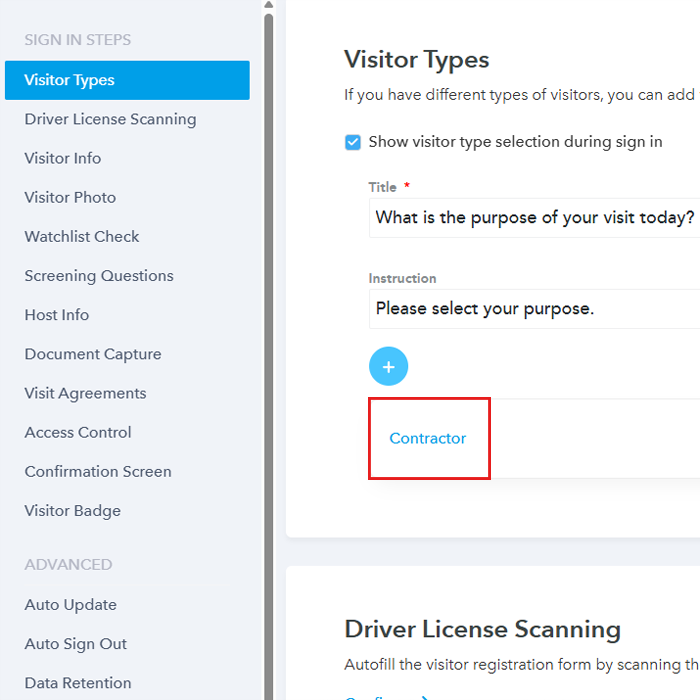
Click on the visitor type you want to add the screening questions for
-
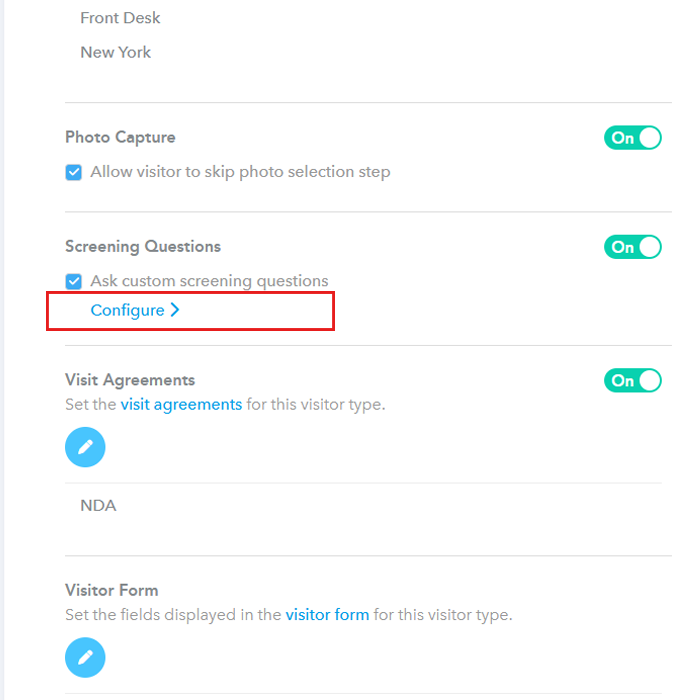
Scroll down to find “Screening question”, turn it On and enable “Ask custom questions”
-
Click on “Configure”
-
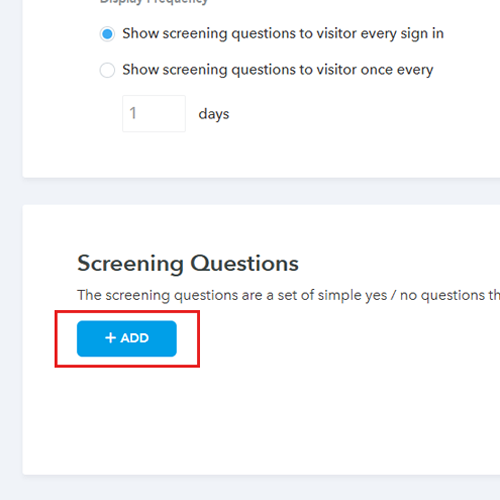
Click on “Add” and add your questions.
Frequently Asked Questions (FAQ)
Use Cases: When to Deploy Custom Screening
You can use custom screening questions whenever the relationship with the visitor dictates a different level of protocol.
- Contractors and Construction Crews: Require them to confirm they have watched a mandatory site safety video, possess the required Personal Protective Equipment (PPE), or confirm their insurance details are current.
- High-Level Vendors/Clients: Ask them to digitally confirm that they have read and agree to a specific Non-Disclosure Agreement (NDA) or confidentiality policy right on the tablet.
- Temporary Staff or Volunteers: Screen them to confirm they have completed necessary background checks or training modules before starting their shift.
- Visitors to Specific Departments (e.g., Labs): Ensure they confirm they are not carrying banned substances or understand highly sensitive protocols unique to that area of your facility.