How to report an incident
Accurate time logging is essential for everything from visitor logs to scheduled notifications. If your account or specific locations aren't set to the correct time zone, your reports and data can become inaccurate, causing confusion during audits or scheduling. This guide will walk you through updating both the default time zone for your entire account and custom time zones for individual physical locations.
A Step by Step Guide to Changing Time Zone in Lobbytrack
-
Go to Your Settings: Log in to your Lobbytrack account at Lobbytrack.com and navigate to your main Settings page.
-
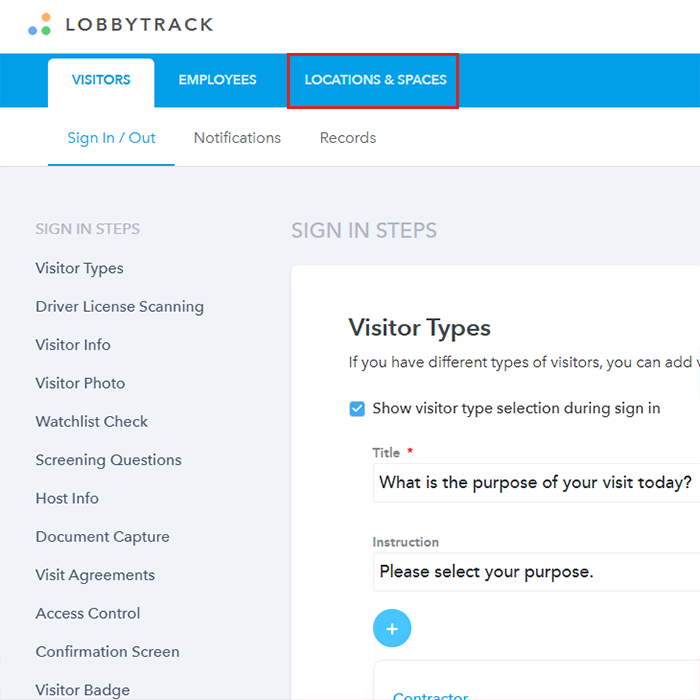
Access Location Settings: From the settings menu, click on Location and spaces.
-
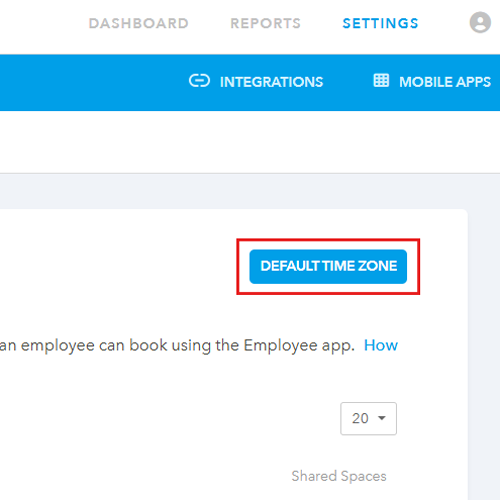
Find the Default Setting: To update the system-wide setting, look for and click on Default time zone.
-
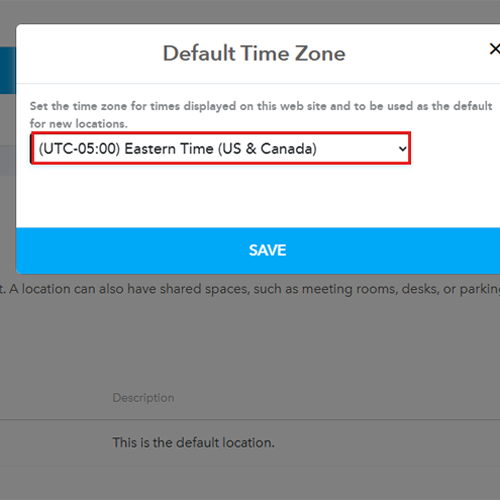
Select Your Time Zone: Use the drop-down menu to select the correct time zone for your account, and be sure to save the change before exiting.
-
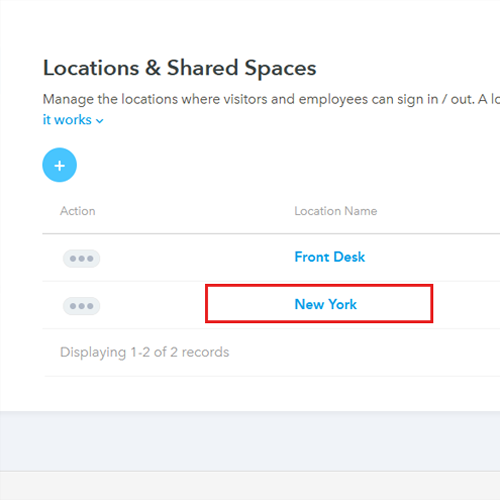
Edit the Location: From the Location and spaces screen, click on the specific location name you wish to edit the time for.
-
Update the Time Zone: Within that location's details, click on the time zone drop-down box and select the appropriate time zone for that physical space. Remember to save your changes.
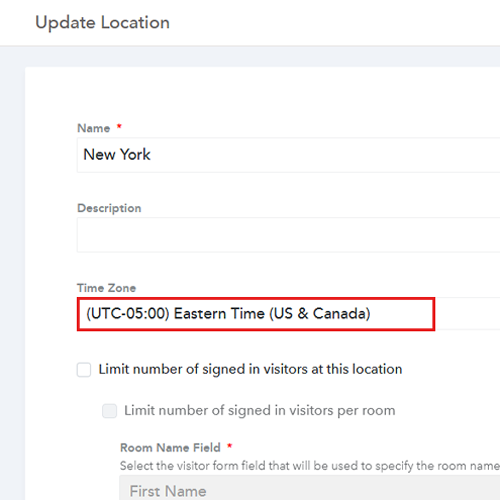
Setting a Location-Specific Time Zone
You may need to override the account default for physical offices or facilities located in different regions.
Frequently Asked Questions (FAQs)
Use Case Examples: Why Time Zones are Critical
Here are a few scenarios that illustrate why maintaining correct time zone settings is essential for operations:
- Global Teams and Remote Offices: If your company has headquarters in Dallas (CST) and a facility in London (GMT/BST), you must set a location-specific time zone for the London site. This ensures visitor check-in/out times are logged accurately for the local security and facility team, avoiding confusion caused by a six-hour discrepancy.
- Scheduled Notifications and Alerts: A facility manager sets an automatic email alert to run every day at 8:00 AM local time to remind reception staff to print pre-registered visitor badges. If the location's time zone is wrong, the alert might be sent hours early or late, disrupting the reception staff's morning routine.
- Compliance and Auditing: During a security audit, officials need to check the exact time stamps on a specific visitor's entry and exit. If your system time zone was incorrect, the audit trail would be compromised, creating discrepancies that require manual explanation and verification.